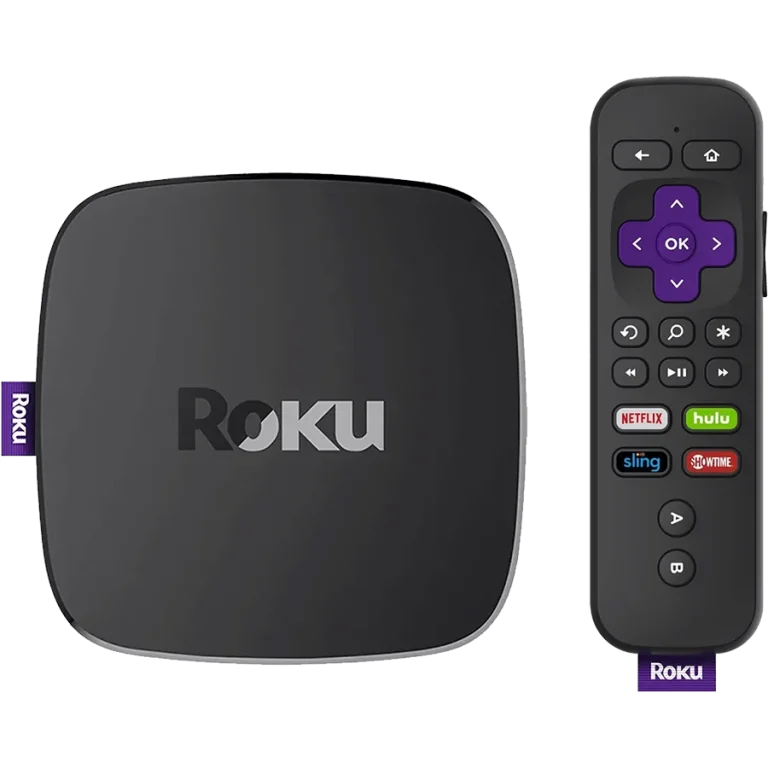

Roku is one of the most popular streaming devices in North America — simple, affordable, and reliable. While Roku’s closed operating system is more restrictive than Android TV, there are two solid methods to get your Trendyscreen subscription running perfectly on any Roku device or Roku TV.
🟣 Important Note About Roku
Roku runs its own proprietary operating system which does not support traditional IPTV apps like TiviMate or IPTV Smarters directly from the Roku Channel Store. However, there are two fully supported and reliable methods to stream Trendyscreen on your Roku device — both outlined below.
🟣 Method 1: The Casting Method — The Easiest Way
Best for: Users who want the simplest possible setup with no technical steps required.
What you need:
- Your Roku device connected to your TV
- A smartphone or tablet on the same WiFi network as your Roku
Step 1 — Install IPTV Smarters Pro on your phone
Download IPTV Smarters Pro from the Google Play Store (Android) or Apple App Store (iOS) on your smartphone or tablet.
Step 2 — Connect to Trendyscreen on your phone
- Open IPTV Smarters Pro and select “Login with Xtream Codes API”
- Enter your Trendyscreen credentials from your welcome email:
- Any Name:
Trendyscreen - Username: (See your email)
- Password: (See your email)
- Server URL: (See your email)
- Any Name:
- Tap “Add User” to load your full Trendyscreen channel list
Step 3 — Cast to Your Roku
- On your Roku device go to Settings > System > Screen Mirroring
- Set Screen Mirroring mode to “Always Allow”
- On your Android phone swipe down and tap “Screen Cast” or “Smart View”
- Select your Roku device from the list
- Open IPTV Smarters Pro on your phone and your Trendyscreen stream appears on your TV instantly
💡 iPhone users: Use an Apple TV or AirPlay-compatible TV for the smoothest casting experience. Roku has limited AirPlay support on newer models — check if your Roku model supports AirPlay in Settings > Apple AirPlay and HomeKit.
🟣 Method 2: The IPTV Channel Method — The Native Way
Best for: Users who want a dedicated Trendyscreen channel directly inside the Roku interface without using a phone.
Step 1 — Add the IPTV Channel to Roku
- On your Roku go to the Roku Channel Store
- Search for “The Roku Channel” or “Private Channel”
- Alternatively visit my.roku.com on your phone or PC
- Log in to your Roku account
- Search for “IPTV” in the channel store and add “Streamer for IPTV” or “IPTV Smarters” if available in your region
Step 2 — Enter Your Trendyscreen Credentials
- Open the installed IPTV channel on your Roku
- Select “Add Playlist” or “Xtream Codes API”
- Enter your Trendyscreen credentials from your welcome email:
- Any Name:
Trendyscreen - Username: (See your email)
- Password: (See your email)
- Server URL: (See your email)
- Any Name:
- Select “Confirm” to load your full Trendyscreen channel list
🟣 Comparison: Roku Setup Methods
| Feature | Casting Method | Native IPTV Channel |
|---|---|---|
| Setup Difficulty | Very Easy | Easy |
| Requires Phone | ✓ Yes | ✗ No |
| Picture Quality | Up to phone capability | Full Roku resolution |
| 4K Support | Depends on phone | ✓ Full 4K on Roku 4K models |
| EPG TV Guide | ✓ Via phone app | Depends on channel |
| VOD Access | ✓ Full Trendyscreen Library | ✓ Full Trendyscreen Library |
| Best For | Quick & casual viewing | Dedicated TV setup |
🟣 Compatible Roku Devices
| Device | Resolution | Trendyscreen Compatible |
|---|---|---|
| Roku Express | Full HD 1080p | ✓ Via Casting |
| Roku Streaming Stick 4K | 4K Ultra HD | ✓ Full Support |
| Roku Ultra | 4K HDR Dolby Vision | ✓ Full Support |
| Roku TV (Built-In) | Up to 4K | ✓ Full Support |
| Roku 2 / 3 | HD 720p / 1080p | ✓ Via Casting |
🟣 Pro Tips for Roku Streaming
📡 Use Wired Ethernet Where Possible
Roku Ultra and Roku Express+ have ethernet ports. A direct wired connection to your router delivers the most stable Trendyscreen experience — especially for 4K streams and live sports events.
📶 Strong WiFi is Essential
If you’re using the casting method, make sure both your Roku and your phone are connected to the same WiFi network and that your signal is strong. A 5GHz WiFi band delivers the fastest and most stable casting performance.
🔒 VPN on Your Router
Roku does not support native VPN apps. For full ISP throttling protection during live sports and PPV events, set up a VPN directly on your router — your Roku will be automatically covered along with every other device in your home.
🔄 Restart Your Roku Weekly
Go to Settings > System > System Restart once a week to keep your Roku running at peak performance and your Trendyscreen streams loading fast.
📱 Keep Your Phone Screen On While Casting
When using the casting method, make sure your phone screen stays active. If your phone screen locks mid-stream it may interrupt the cast — adjust your screen timeout in phone settings to prevent this.
🟣 Troubleshooting Common Roku Issues
| Problem | Solution |
|---|---|
| Casting not working | Make sure phone and Roku are on the same WiFi network |
| Screen mirroring laggy | Switch to 5GHz WiFi band on both devices |
| IPTV channel not available | Try the casting method as an alternative |
| Credentials not accepted | Double check username, password, and server URL from your welcome email |
| Buffering during live sports | Enable wired ethernet or move router closer to Roku |
| Black screen when casting | Restart both your phone and Roku then try again |
🆘 Need Assistance?
Roku setup can feel different from other devices — our support team is available 24/7 to walk you through either method personally.
👉 Contact Trendyscreen Support: vonwik.io/contact